I keep a mental list of software development tools that friends recommend or that I’ve heard good things about. In the last year, I’ve started using a dozen of them. I’ve used most of the tools in this article for at least a few months, and many I’ve used all year. But the most important part is that I plan to keep using them because they are so good.
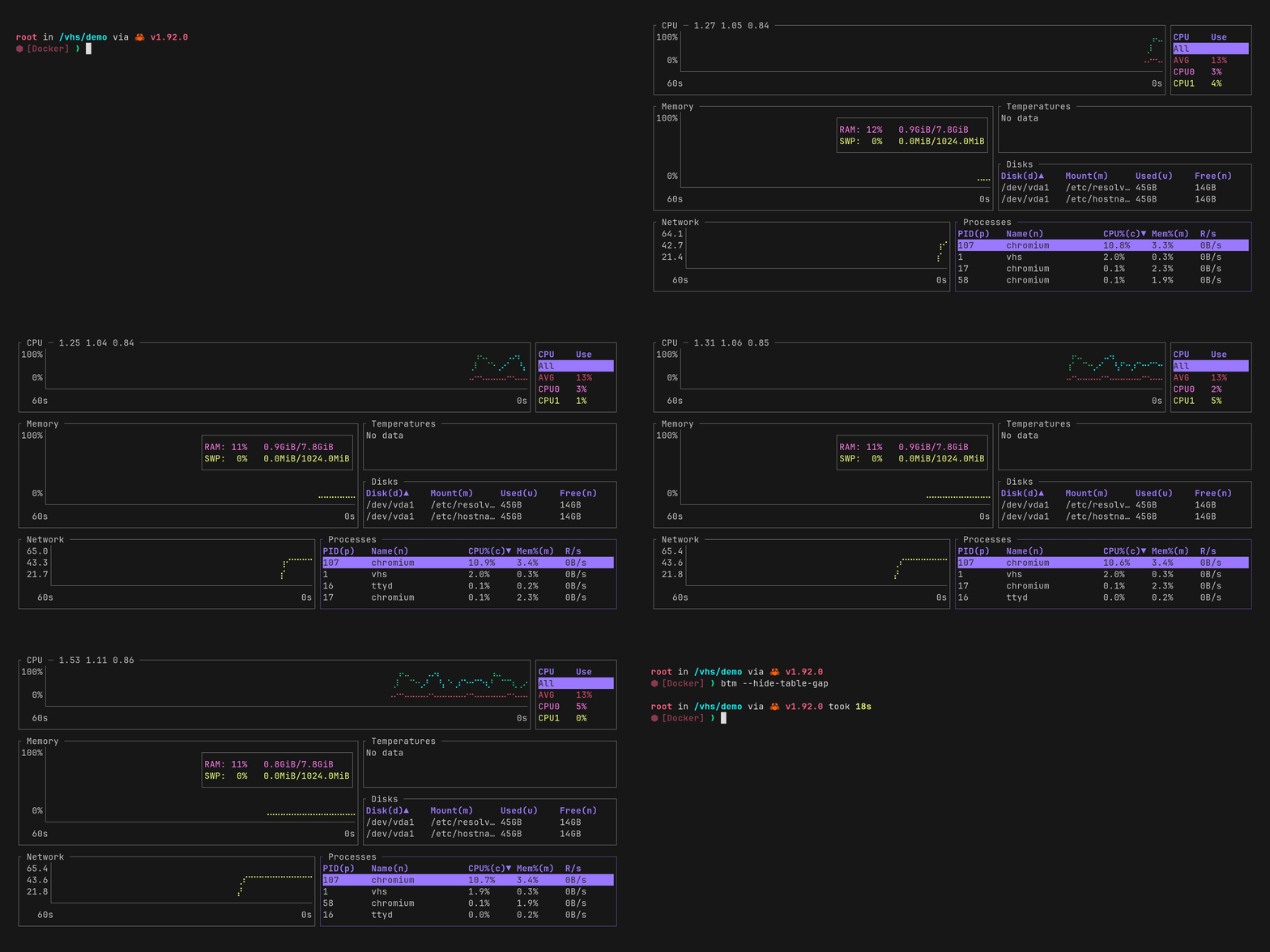
The btm tool: local compute resource visualization
In this post I’ll cover a few command line tools that are easy to switch to, from whatever equivalents you’re using now. In the next post, I’ll show tools that I love but that were much more difficult to learn, configure, or adopt (and yet were worth the effort).
My context
- I enjoy good design and engineering, and new ideas implemented well
- I’m willing to learn something new, even if it’s not backwards compatible or if it breaks my existing muscle memory
- I am a manager and don’t code every day, so I can make a switch somewhat gradually
- But I also pick up new tools quickly if I find them to be useful
- I do a lot of work in a terminal or over SSH. I prefer a focused, fast, well designed and keyboard-operated terminal-based development tool over most desktop apps that require a mouse
The tools
Starship prompt
brew install starship
What: A single command that populates your terminal prompt with useful information from dozens of tools (source code control, cloud services, directory paths, execution time, versions of development tools). All are populated based on context, so you’ll only see the version of Go in use if you are in a Go project.
Why switch: It’s quick (and partially asynchronous). It works with almost no configuration. It includes plugins for most tools you’ll ever want to use.
Crunchy bits: It can be difficult to turn off one plugin based on another (example: don’t show git info in a jj repo).
Power features: Works well as-is. It’s possible to extend it for tools that aren’t included (such as jj).
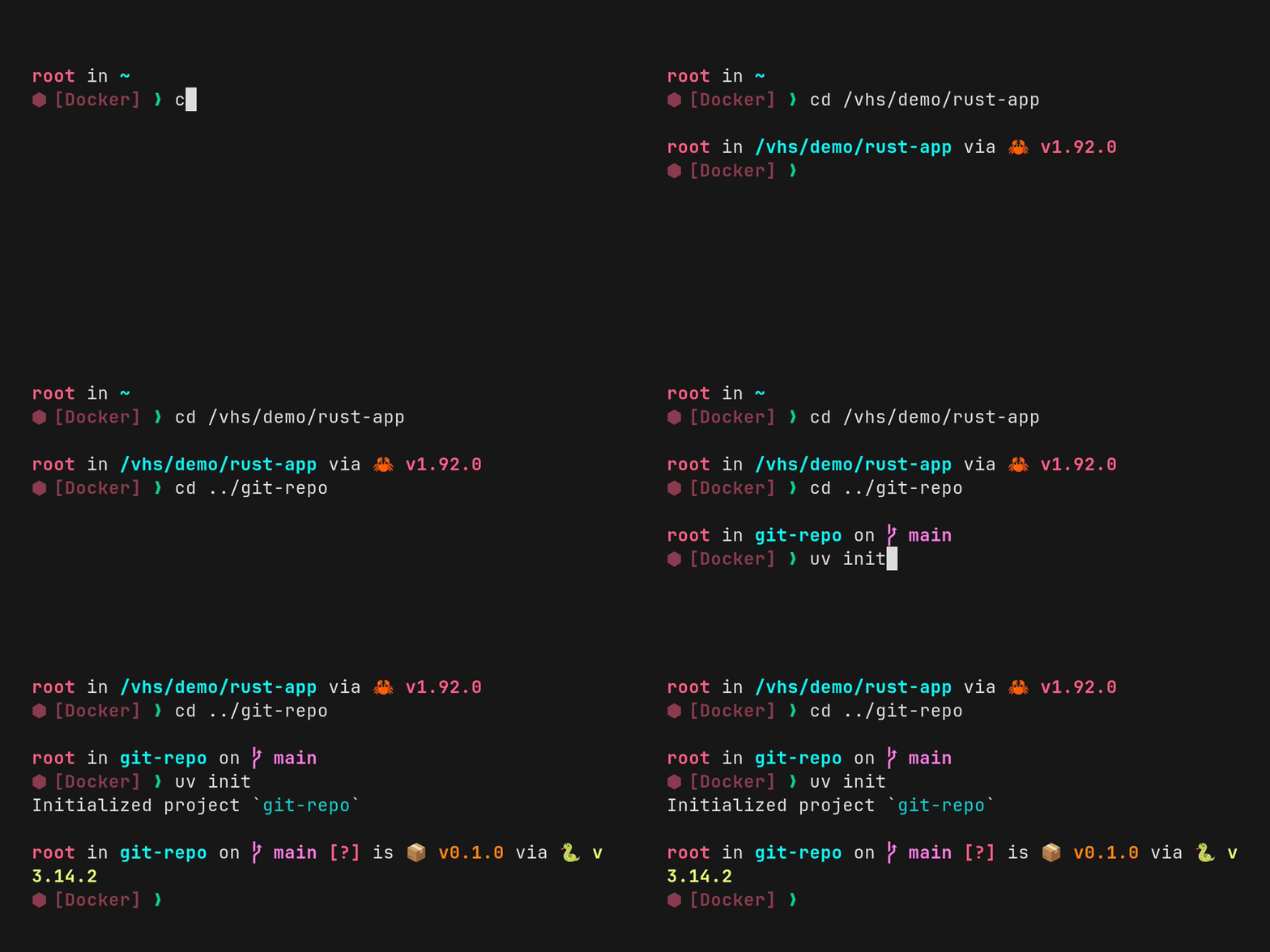
Starship prompt for rust, git, and python
Gum
brew install gum
What is it: A collection of TUI (textual user interface) commands for building one-off user interfaces in scripts. For example, I use gum filter to show a list of available git branches which I can fuzzy search and checkout with a few keystrokes.
Why switch: It’s fun, colorful, and powerful.
Crunchy bits: It can take some manipulation to extract text from other applications and pipe it to gum. But when you do, it’s glorious.
Power features: Send a list of background processes to gum filter and foreground the selected one.
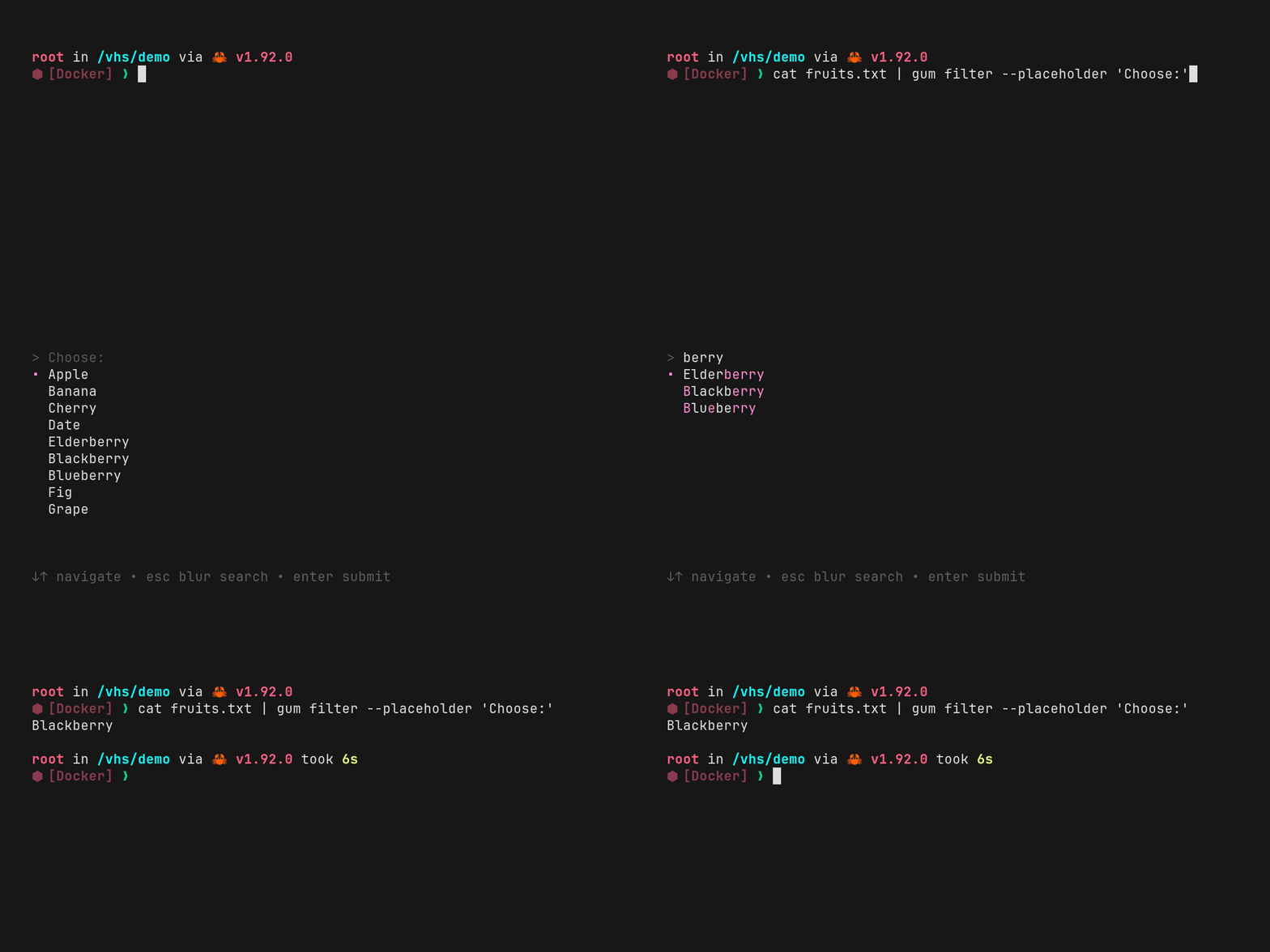
gum textual user interface helper
Utilities: bat zoxide dust btm eza
What is it: A handful of tools that replace common Unix tools, but are improvements in design or the developer experience.
bat — brew install bat — A replacement for cat. Displays file contents with syntax highlighting.
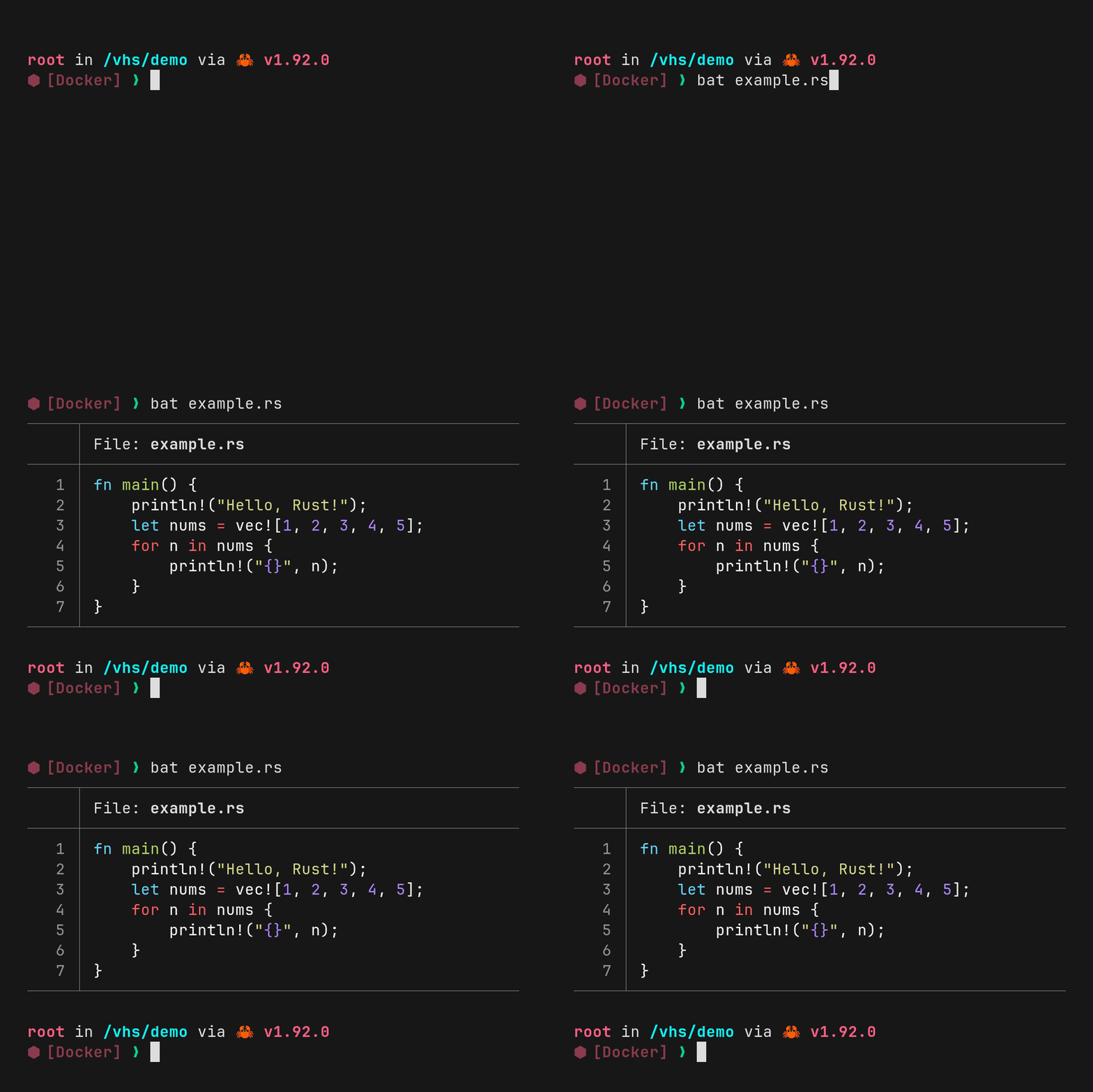
bat file viewer
zoxide — brew install zoxide — A replacement for cd. A fast directory switcher that keeps track of which directories you use most often. Alias it to zi and use it when you need to navigate to a directory.
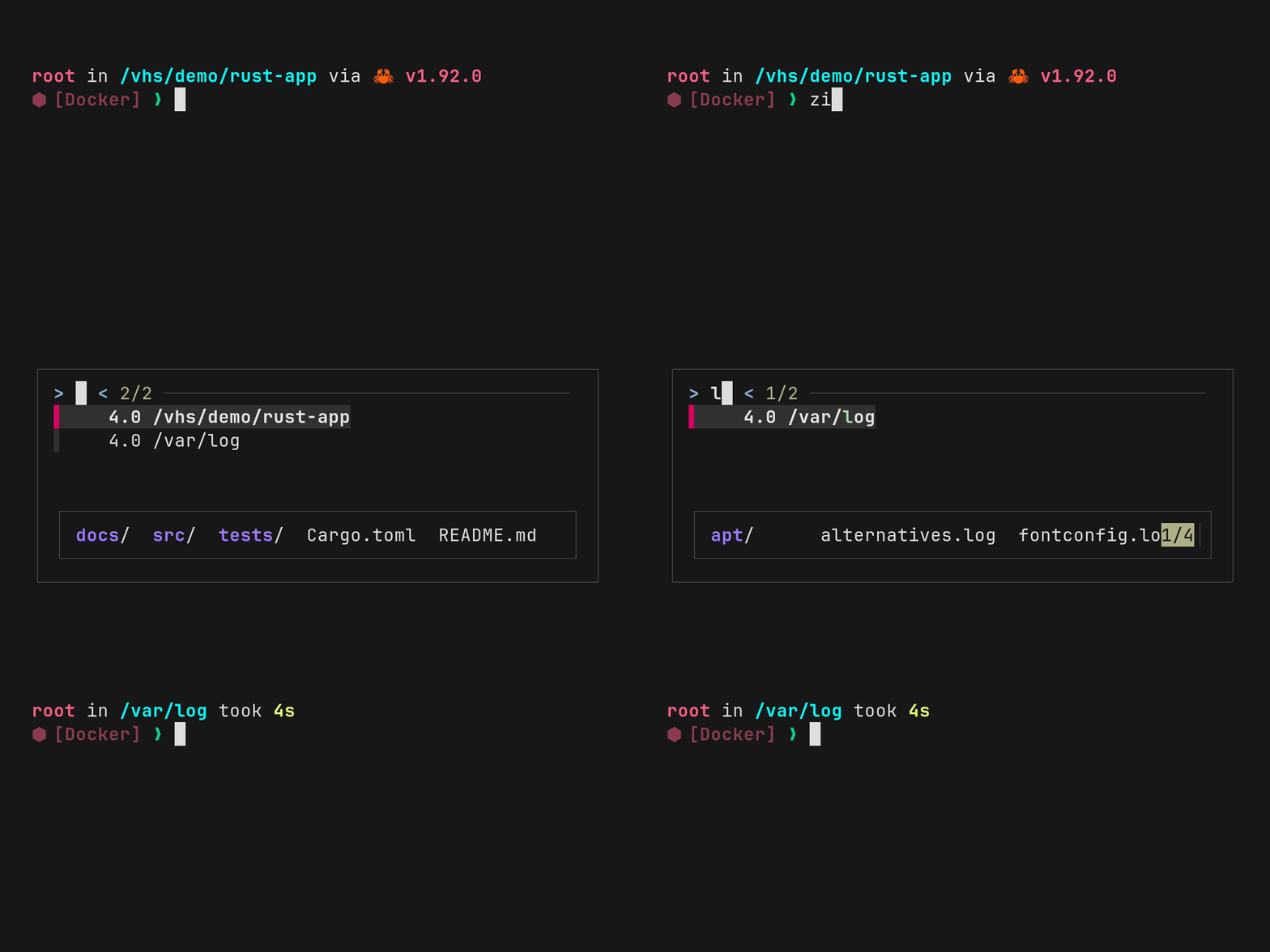
zoxide directory switcher
dust — brew install dust — Summarizes file and directory sizes so you can see which ones are using the most space.
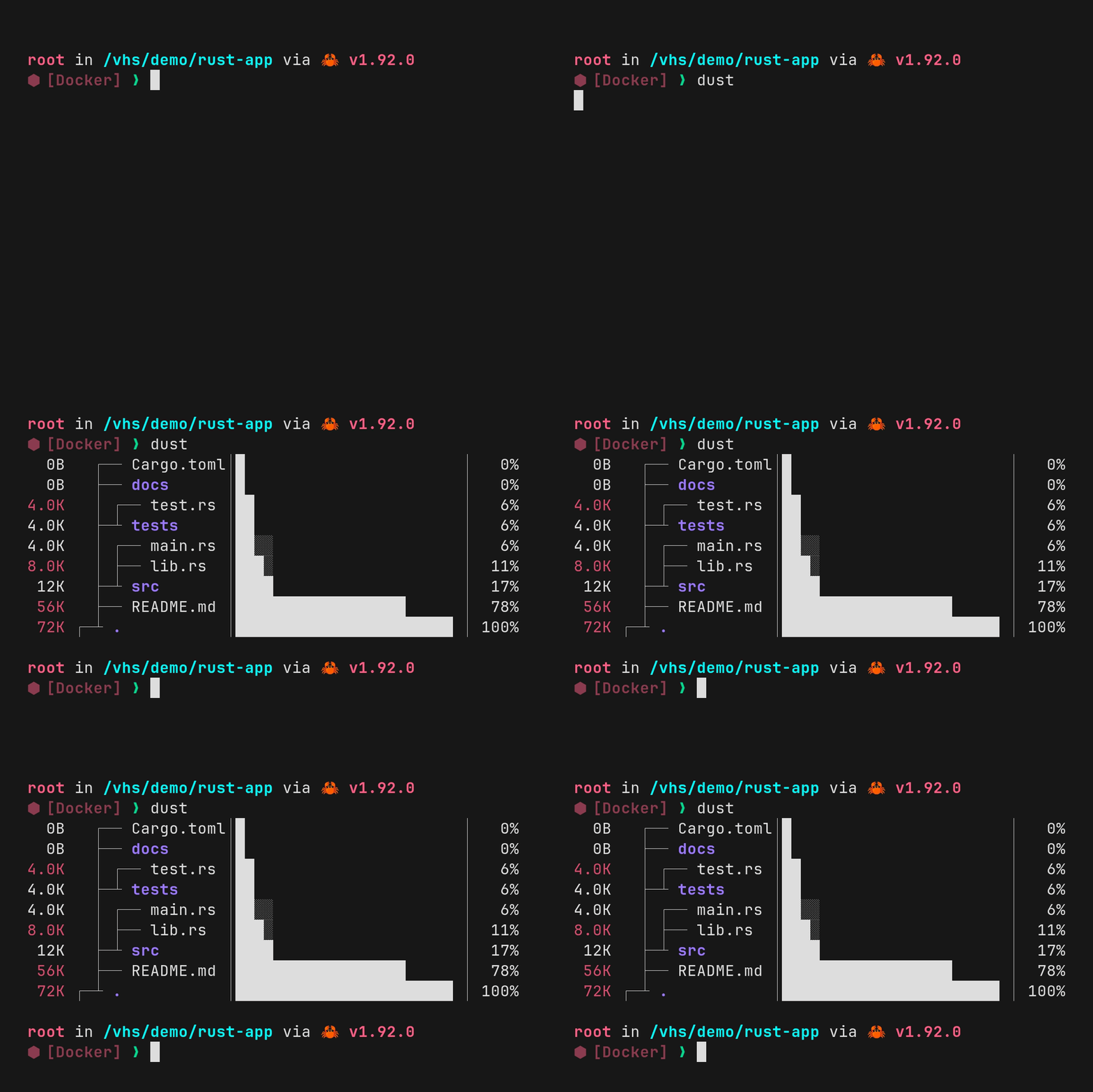
dust disk usage report
btm — brew install bottom — A replacement for top. A visual dashboard with metrics for CPU usage, memory, network, and disk.
btm resource dashboard
eza — brew install eza — A more colorful ls that can display files and folders with icons and color.
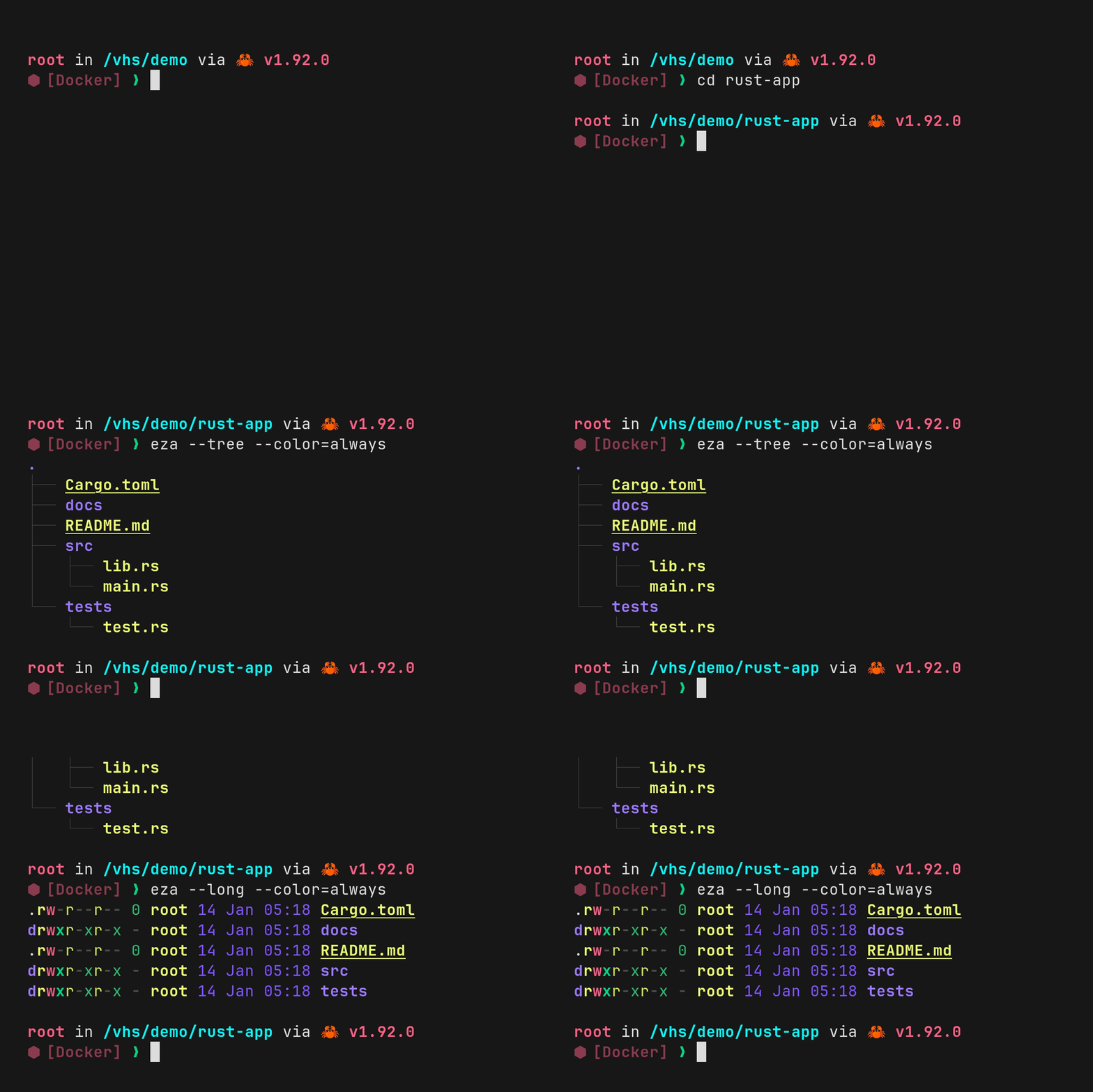
eza directory listing
Why switch: They are all simple replacements for tools that I use often, but are better, faster, and easier to use. I use all these tools with no additional configuration. Default tools are still there if I need to use them.
Crunchy bits: None, really? If I accidentally type the name of a legacy tool, it works as expected.
Power features: Preload directories in zoxide for easy access before you need it. Open a terminal tab and run btm indefinitely for machine metrics.
Crush AI
brew tap charmbracelet/tap
brew install charmbracelet/tap/crush
What is it: A TUI replacement for Claude Code, Cursor Agent, or other CLI LLM tools. It’s written in Go using a well tested TUI framework. It works with almost any LLM provider via APIs (but not with all LLM agent subscription plans).
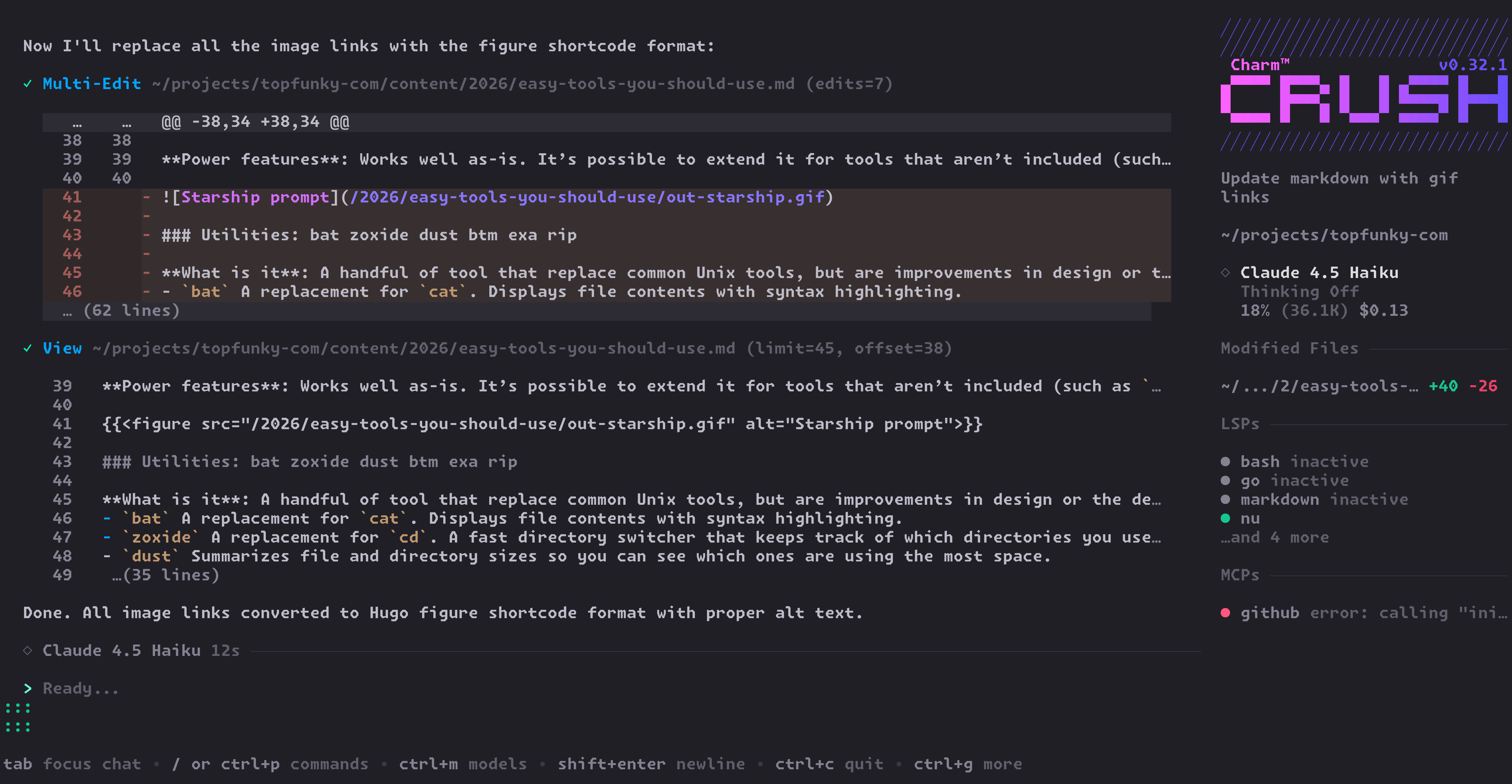
A full featured textual user interface for coding with AI agents
Why switch: Other CLI Agent tools have always felt like prototypes to me. Their terminal components are basic and limited, defaulting to a stream of text. Their syntax highlighting is incomplete. Sometimes they don’t work well with background processes. The options for working with keyboard shortcuts are limited.
Crush uses a more mature and full featured TUI framework, and it’s written in Go (so it handles multi-threading and concurrent processes more effectively).
Crunchy bits: It works great with pay-as-you-go plans (via API key) but not with a Claude Code or Cursor subscription. It does work with GitHub Copilot (even the free tier, which is an easy way to try it: crush login copilot).
Power features: Assign different models for large and small tasks. Configure an LSP (language server protocol) which can feed in information to your LLM about best practices for the programming language you’re using. See how much you’re paying for each session.
I’ve written a Nushell function that reads Crush’s SQLite database and shows me a summary of recent sessions, tokens used, and cost.
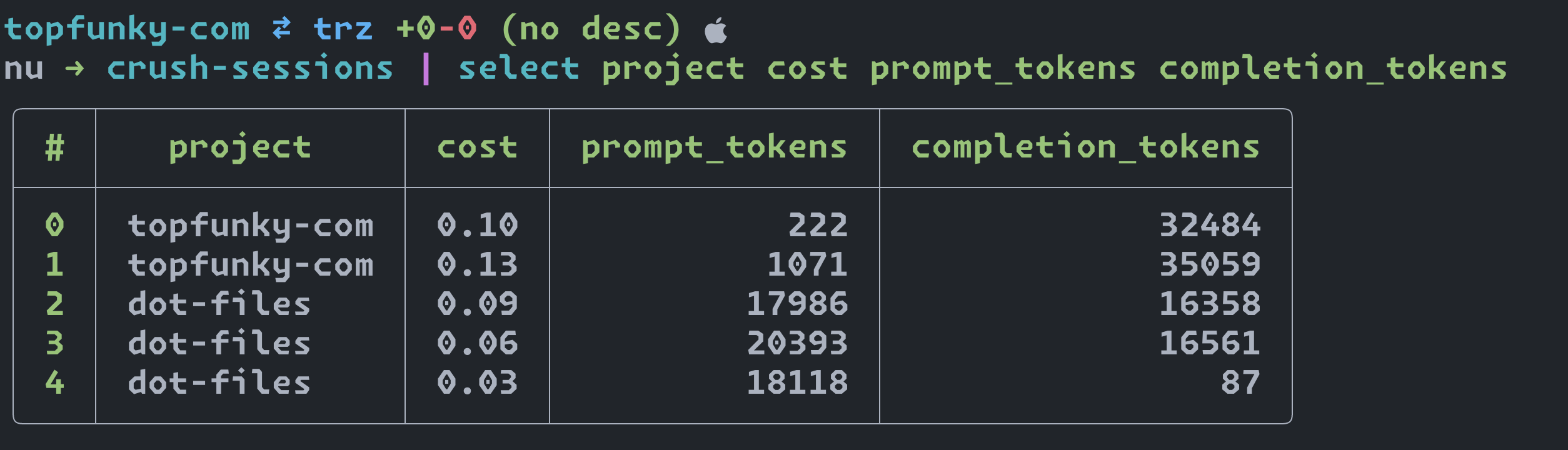
A report in Nushell that reads the SQLite database where Crush logs each session
Similar posts elsewhere
Other articles
-
When you code with an AI agent, you're a code reviewer
-
Game by game leaderboard and Elo ratings